Studio
Multi-angle AI generation: replace multi-cam shoots inside Premiere
A traditional multi-cam shoot adds bodies, sync, and more footage to manage in post. Kling O3 Multi-Cam inside Chat Video Pro targets a different problem: you already have a hero angle, but you need reverse shots, wides, or over-the-shoulder coverage without a second production day. The model analyzes a short reference clip (three to ten seconds, up to 200 MB) and generates complementary angles that aim to match lighting, motion, and cinematic language. You are not replacing every live event or long dialogue block with AI — you are filling gaps when schedule or budget left you with a single camera. This guide paraphrases the Kling Multi-Cam documentation: when to use it, how to prompt with @Video1 references, Elements for character consistency, and how to cut results on a Premiere timeline next to real A-roll.
Physical multi-cam vs AI-generated angles
Real multi-cam gives true parallax, talent continuity, and reactive eyelines across cameras. AI angles work best as supplemental B-roll when the primary performance is locked. Use generated shots for reverse interviews, establishing coverage, or reaction close-ups — keep audio and story truth on the angle you actually recorded.
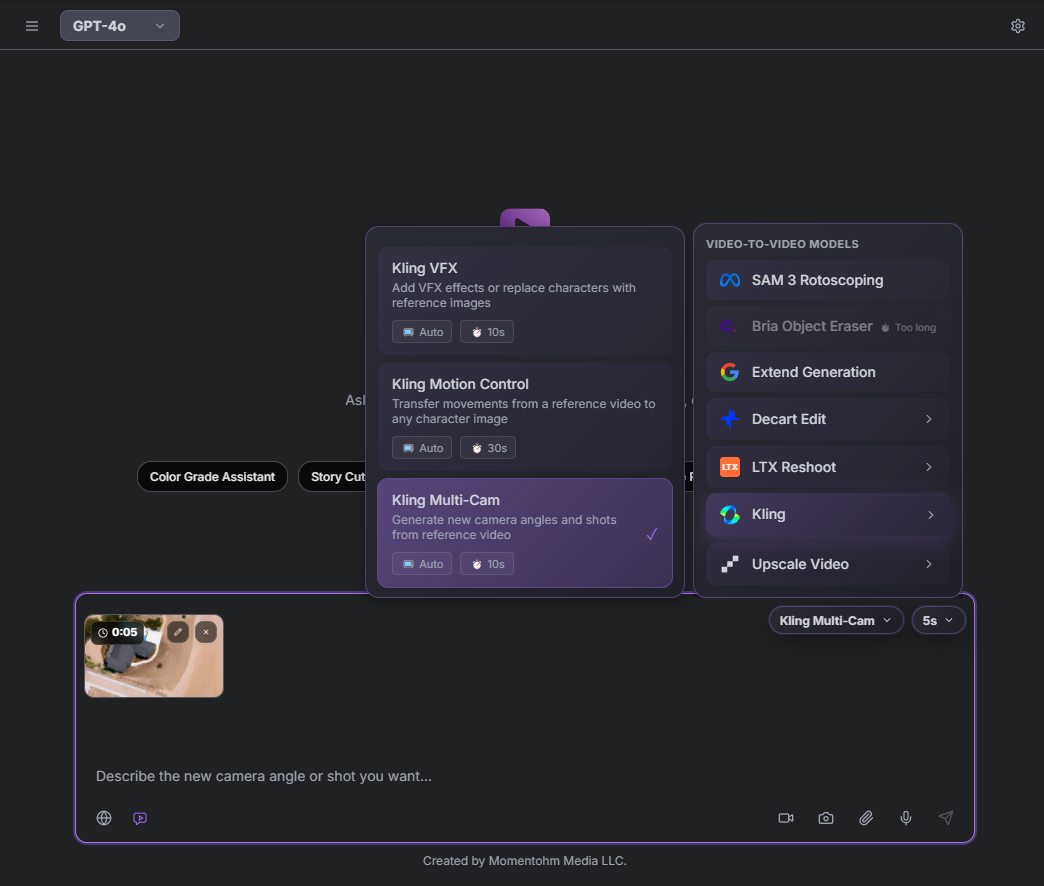
Docs call out clear boundaries: Multi-Cam is not for extending duration (use Generative Extend), adding VFX (Kling VFX), rotoscope (SAM 3), or object removal (Bria Object Eraser). Pick the right Studio tool before you prompt.
What Kling Multi-Cam does
- Reverse angles for dialogue without a second camera on set
- Alternative perspectives from the same scene lighting
- Coverage generation when only one angle was shot
- Style continuity — motion and grade follow the reference clip
- Character consistency when you pair clips with Library Elements
How to run Multi-Cam inside Premiere
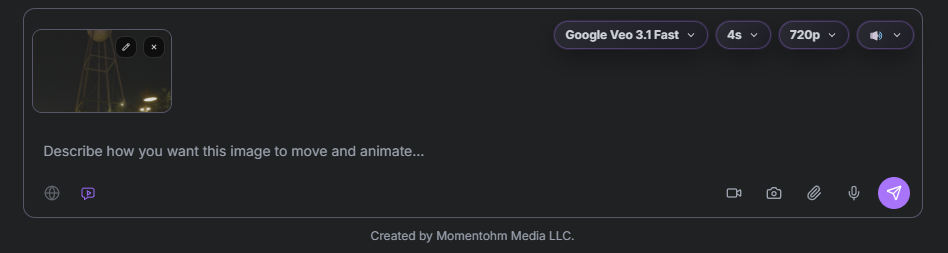
Attach your reference video in the composer (MP4 or MOV, 720p–2160p input). Choose Kling Multi-Cam in the model selector, describe the shot, and send. Prompts follow a simple pattern: "Based on @Video1, generate [shot]. [Style notes]." Examples in the docs include reverse interview angles, wide establishing shots, close-up coverage, and over-the-shoulder framings — always ask to keep the same lighting or cinematic look when drift appears.
Elements, specs, and limitations
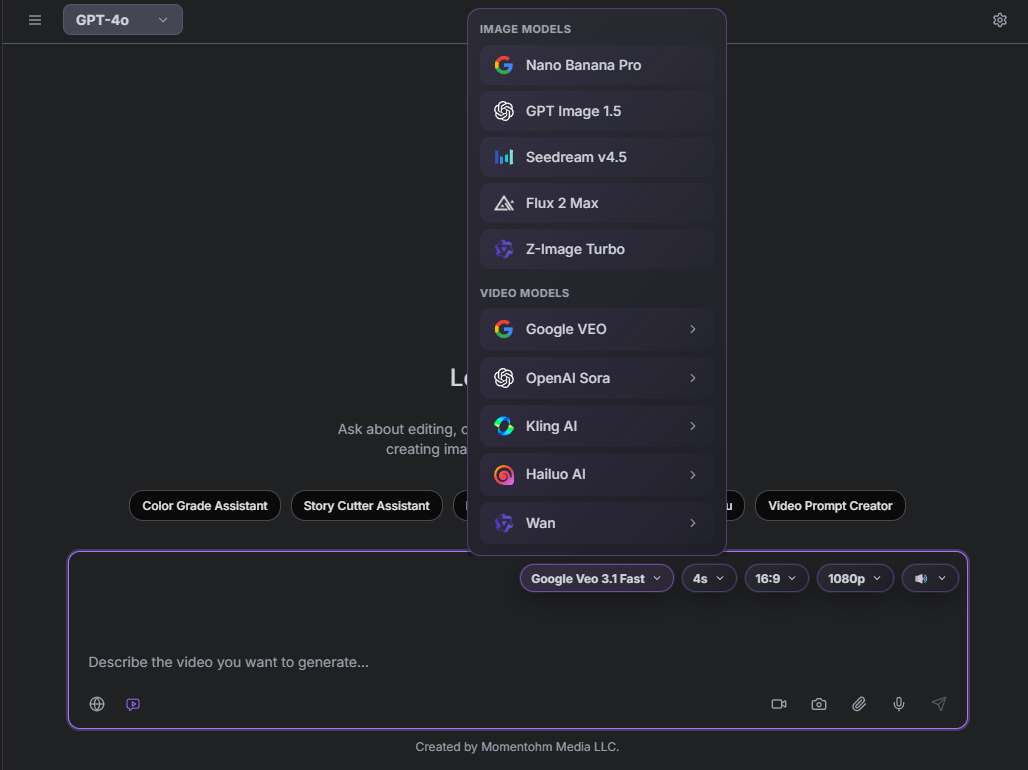
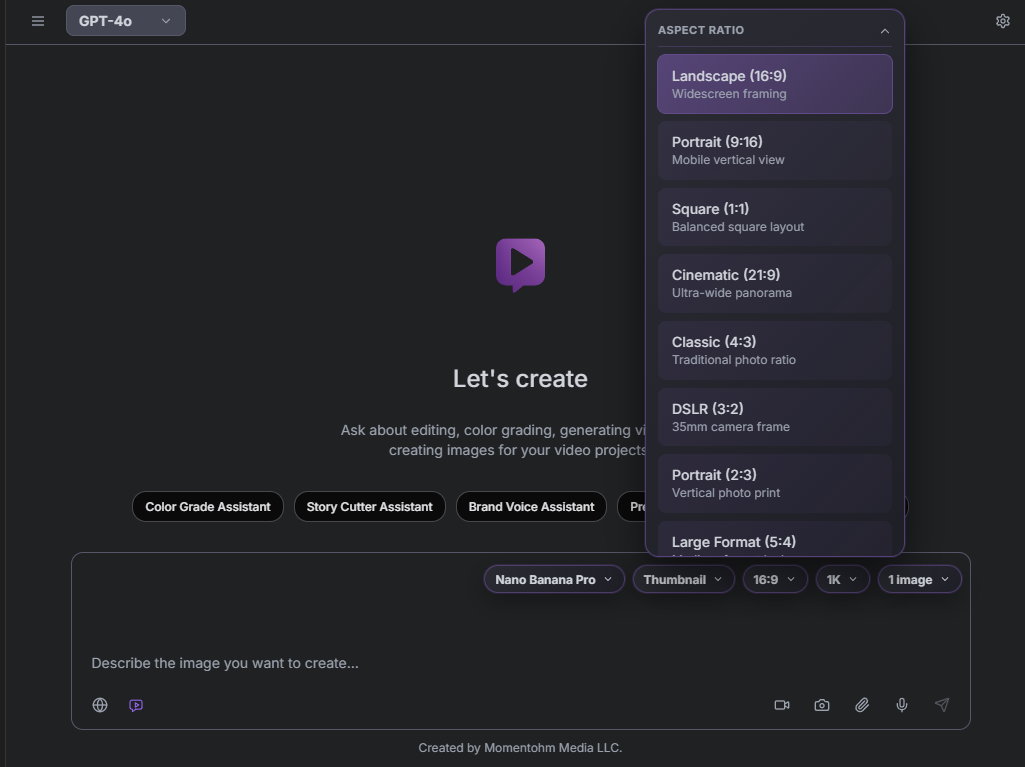
For consistent faces, create a Library Element with one to four images of the subject and reference @ElementName in the prompt alongside @Video1. Output durations are five or ten seconds with aspect ratios 16:9, 9:16, or 1:1 auto-detected from source. Results are AI-generated — expect occasional artifacts on fast motion or hands; well-lit, stable plates track better.
Cutting AI angles on the Premiere timeline
Import approved clips to the sequence, cut on action, and match eyelines in the Program Monitor. Keep dialogue audio on the primary angle; mute generated clips unless you intentionally generated audible motion. Layer wides and reverses as B-roll over the interview spine — the same workflow you would use for second-unit footage, with wholesale per-job billing logged in Usage.
Interview coverage workflow from the docs: import a ten-second talking-head clip, generate reverse and reaction shots, then intercut. B-roll variation workflow: wide plus detail from one hero plate. Narrative workflow: Elements for cast, medium and close from the master.
When to still shoot real multi-cam
Live events, long unscripted dialogue, and intricate hand interaction still benefit from real additional cameras. Single Premiere multicam clips on one track are one layer to Story Cutter — stacked synced clips remain the path for true multi-angle dialogue edits; Multi-Cam is generative coverage, not a replacement for synced production multicam.
Full Kling Multi-Cam reference on Gitbook
Prompt library, troubleshooting, and related tools (VFX, Motion Control, VEO Extend) are documented on Gitbook with the latest O3 naming.
→ Multi-Cam in Studio: https://docs.chatvideopro.com/features/studio/multi-cam
Frequently asked questions
- Can AI angles replace a three-camera interview?
- Often for cutaways and reverses — keep the primary angle as truth and use AI for supplemental shots.
- What clip length does Multi-Cam accept?
- Three to ten seconds of reference video, up to 200 MB, per the official specifications table.
- Where do I find the tool in the panel?
- Attach video in the composer or Video Canvas Editor and select Kling Multi-Cam in the model selector.
- How is usage billed?
- Like other Studio jobs — wholesale through your FAL API key; monitor in Gear → Usage.
Try Chat Video Pro
AI rough cuts, Studio generation, and wholesale billing — all inside Adobe Premiere Pro. One-time license, no platform subscription.
Related guides
- The best AI video generation models for cinematic work in 2026 →
- How to make an AI rough cut inside Premiere Pro →
- Why pay-per-use AI beats credit-based subscriptions for editors →
- How to install an AI plugin in Premiere Pro (2026 guide) →
- Transcript-based editing: the fastest workflow for interview and podcast video →
Technical reference: docs.chatvideopro.com